Character Tsukuru#
RPG Tsukuru 4's second disc is Character Tsukuru (キャラクターツクール), a paint program for making your own graphics: hero sprites, faces, monsters, magic effects, weapon slashes and title pictures. It saves them to a memory card, and the editor on disc 1 then takes them in alongside the disc's own graphics.
The guidebook doesn't cover it. The English patch translates it, and this chapter's screenshots are of the patched disc. The button under each one shows the same screen on the original disc. Where the original's Japanese name for a part may help someone using that disc, the tables give it too.
Getting around#
Character Tsukuru is worked with a pointer, like a desktop paint program. The d-pad moves it (it speeds up the longer it is held), and so do an analog pad's sticks and the PlayStation Mouse.
| Button | Does |
|---|---|
| ○ or □ (or the mouse's left button) | Click: press a button, draw with a tool |
| △ or × held (or the right button) | Help: the name of the thing under the pointer and what it does, at the bottom of the screen, for as long as it is held. On the picture it is instead the eyedropper: it picks up the colour under the pointer |
The menu#
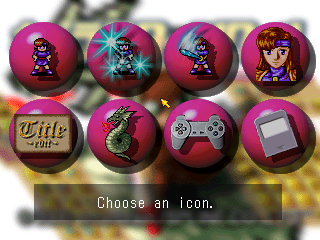
| Icon | Name | On the original disc | Makes | Size | In RT4 |
|---|---|---|---|---|---|
| Hero | Character Editor | 人物エディタ | A hero's or a person's sprite: the battle poses and the field walk | 26 poses | Hero graphics 136–145 |
| Hero with sparkles | Magic Editor | 魔法エディタ | One effect graphic for spell animations | 32 × 32 | Effect graphics 40–49 |
| Hero with a sword | Slash Editor | 太刀筋エディタ | A weapon's slash: the mark a hit leaves | Three frames of 32 × 32 | Slashes 8–17 |
| Face | Portrait Editor | 肖像画エディタ | A face for messages and menus | 40 × 40 | Faces from 136 |
| Title | Title Editor | タイトルエディタ | A title-screen picture | 288 × 208 | Background 56 |
| Dragon | Monster Editor | モンスターエディタ | A monster: eight frames in one of four sizes | S to LL | Monster graphics 112–126 |
| Controller | Device Settings | デバイス設定 | The pointer's speed for the pad, the analog pad and the mouse | ||
| Memory card | Memory Card Utility | メモリーカードユーティリティー | Copying, deleting and formatting |
The first four share one editor, with 16 colours; the title and monster editors share another, with 256 colours. Every graphic can be saved and loaded again to work on later.
The 16-colour editors#
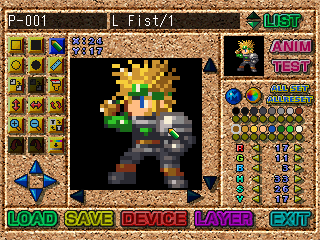
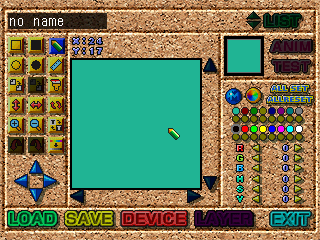
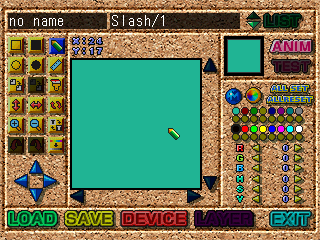
Character, Magic, Slash and Portrait are one screen. Across the top: the graphic's name, the pose and frame being edited (with ▲ ▼ to step through them) and LIST. In the middle, the picture, drawn large, with scroll arrows round it and a 1× preview to its right. On the left the tools, and under them a cross that shifts the whole frame a pixel at a time. On the right, the palette. Along the bottom: LOAD, SAVE, DEVICE (the pointer's speed), LAYER and EXIT.
The tools#
The panel is three columns of icons. The first three rows and the two magnifiers are tools: choose one, then click on the picture. The rest act at once, on the whole frame.
| Tool | On the original disc | Use |
|---|---|---|
| Rectangle, Filled rectangle | 矩形, 塗りつぶし矩形 | Click two corners |
| Pen | 自由線 | Click for a dot, drag to draw freehand |
| Circle, Filled circle | 円, 塗りつぶし円 | Click two points |
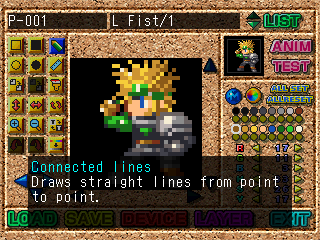
| Connected lines | 連続線 | Click each point in turn |
| Copy, Paste | コピー, ペースト | Click two corners to copy; then click to paste |
| Fill | 塗りつぶし | Fills the area of one colour that you click |
| Zoom in, Zoom out | 拡大率アップ, 縮小率ダウン | Each click zooms one step, centred where you click (hold to repeat); △ goes the other way |
| Flip top-bottom, Flip left-right, Rotate | 上下フリップ, 左右フリップ, 回転 | The whole frame, at once (Rotate turns it 90° clockwise) |
| Negative | ネガポジ反転 | Inverts every colour of the palette |
| Greyscale | グレースケール | Turns every colour grey (by its brightest channel, so it comes out light) |
| Undo, Redo | アンドゥ, リドゥ | Up to 16 steps back |
Negative and Greyscale change the palette, not the picture's pixels, so they can be undone or put right by editing the colours.
The palette#
Sixteen colours, each set with R, G, B sliders (0–31) or H, S, V (hue, saturation, brightness). Colour 0, top left, is transparent: it is what shows the background in the game. Click a colour to draw with it, or hold △ on the picture to pick one up.
Two buttons put a tick box under each colour, with ALL SET and ALL RESET to tick or clear them all:
- Mask (マスク): ticked colours are protected. Nothing is drawn over a pixel of a masked colour, so you can paint behind an outline without touching it.
- Bulk change (一括変更): the sliders move every ticked colour by the same step at once: to make a whole costume darker, or shift its hue.
Character poses#
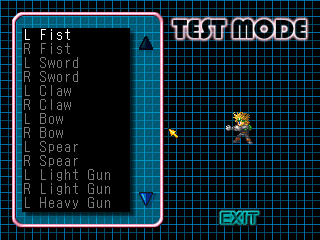
A character is a full set of poses: 53 battle frames and 12 field frames. Step through them with the ▲ ▼ by the frame name. ANIM plays the current pose, and TEST shows any pose animated on its own.
| Pose | On the original disc | Frames |
|---|---|---|
| Attacks with the left (L) or right (R) arm, for each weapon kind: Fist, Sword, Claw, Bow, Spear, Light Gun, Heavy Gun | 左腕攻撃 / 右腕攻撃: 拳, 剣, カギ爪, 弓, 槍, 小火器, 重火器 | 3 each (14 poses) |
| Victory | 勝利ポーズ | 3 |
| Dead, Hit, Guarding, Casting, Breathing, Attack ready | 死亡ポーズ, ダメージポーズ, 通常防御, 魔法使用, 息づかい, 攻撃待機 | 1 each |
| Chanting | 魔法詠唱 | 2 |
| Walk/Left, Walk/Right, Walk/Up, Walk/Down | 歩き/左, 右, 上, 下 | 3 each: these are the field sprite |
The frame name at the top reads the pose and the frame: L Fist/1 is the first frame of the left-arm punch.
LIST and LAYER#
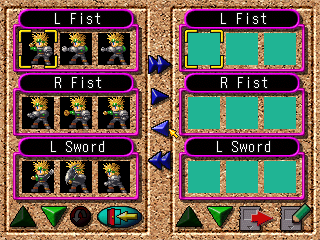
LIST (pose management) shows two characters side by side: the one being edited on the left, and on the right another loaded with the right-hand LOAD. The arrows between them copy one frame, or every frame, from one side to the other, with or without its colours. So you can borrow a sword swing from a sample, or keep a spare copy to compare. A copy asks first, naming both ends: L Fist/2 (to), R Fist/2 (from), Copy? When the two columns show some of the same poses, a heading can show the wrong pose's name; the frames under it are the right ones. The Undo button under the left side puts back everything changed on this screen, and the right-hand SAVE saves the right side as a character of its own.
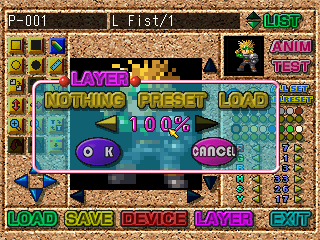
LAYER (back layer) puts a guide behind the picture, drawn wherever the frame is transparent: NOTHING, PRESET (a grey body template, for the proportions) or LOAD (another character's same frame, for tracing). The ◀ ▶ dim it from 100% in steps of 10. The layer is never saved with the graphic.
Portraits#
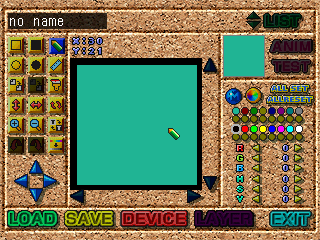
A face is one frame of 40 × 40 in 16 colours, its own palette apart from the character's. RT4 can pair any face with any sprite.
The 256-colour editors#
The title and monster editors share a larger paint program, with 256 colours and its tools in floating windows. The picture fills the screen behind them. Each window has a title bar to drag it by and a close button, and the first click on a window that is behind another only brings it to the front.
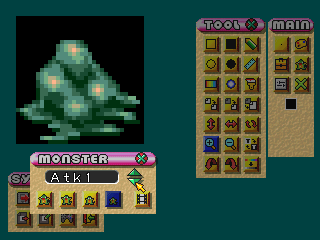
| Window | Holds |
|---|---|
| MAIN | Buttons that open the others: PEN, PALETTE, TOOL, MONSTER and SYSTEM, and Close all. It shows the current colour, and while you pick a rectangle its X, Y, W and H |
| TOOL | The tools (below) |
| PEN | 25 pen tips, from one pixel to large brushes and patterned tips, and Spray with its strength (1–99): with it on, the pen sprays dots for as long as it is held, and pastes come out speckled |
| PALETTE | The 256 colours, 16 rows of 16 (below) |
| MONSTER | The frame being edited, the size (S, M, L, LL) and an animation preview |
| SYSTEM | LOAD, SAVE, Wide-screen TV (for a 16:9 television: the screen is drawn 512 pixels wide and the windows spread out to match), Front/back page, Part SAVE and Part LOAD, DEVICE and EXIT |
PEN and PALETTE each have a large and a small window, switched by a button on the title bar.
The tools#
The same as the 16-colour editor's, plus:
- Gradient: click two points; the picture is painted with a dithered ramp through the current palette row's 16 colours, from the first point to the second. Circular gradient does the same in rings, from the rim of an ellipse in to its centre.
- Scaled copy: pick a rectangle, drag its sides or corners to resize it, then click inside to pick it up and click again to paste it, as often as you like.
- Flip and Rotate here work on a rectangle you pick, not the whole picture.
- Every tool paints with the current pen tip. A 16-colour tip paints its own pattern in the current palette row.
- Undo here goes back one step only.
The palette#
The 256 colours are set with RGB and HSV sliders, as in the 16-colour editor. Mask and Bulk change work the same (and a paste leaves out a masked colour, so masking a colour makes it see-through in what you paste), with H-SEL and V-SEL to tick every colour of about one hue, or within a range of brightness, in one go. Gradation turns the current row into a smooth ramp between its ends: a good start for shading.
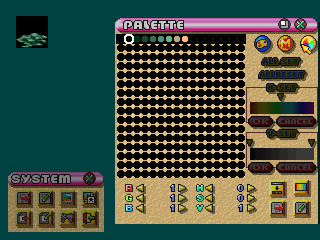
Reduce colours packs the palette when it fills up: it sorts the colours by how much they are used, merges duplicates, and each time it is pressed again folds the least-used row into the nearest remaining colours. It can't be undone, and it asks first. A part picture loaded with Part LOAD keeps its own colours: they are added after the palette rows your picture uses, and its pixels are moved onto them. So it needs free rows, and the editor asks for a reduction first if there aren't enough (Not enough room in the palette. Reduce the colours, then load.).
Titles#
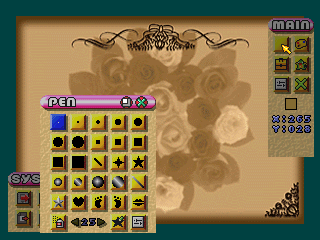
A title picture is 288 × 208. In RT4 it is a background for the title screen only: the Title editor lists it after the disc's backgrounds, and the Title command shows it in play. The background lists for maps and battles don't offer it. On a map, the same number is the first of the set's base-part backgrounds.
Each picture has a back page, swapped with the front by SYSTEM's Front/back page: a scratch sheet for trying things out or keeping parts. Saved while it is showing, the back page is saved as a title picture, from either editor.
Monsters#
A monster is eight frames in one palette, at one of four sizes. The size decides how many fit in one of RT4's monster units, as for the disc's own monsters (Graphics catalogue).
| Size | Frame | Blocks to save: the disc's samples | At most |
|---|---|---|---|
| S | 32 × 32 | 1 | 2 |
| M | 56 × 56 | 1 | 4 |
| L | 56 × 104 | 1 or 2 | 7 |
| LL | 120 × 120 | 2 or 3 | 15 |
A save is packed, so the count depends on the picture: a busy, noisy one packs less well. At most is the size unpacked, which a save never passes. The M, L and LL frames are a little smaller than the disc's own monsters', which take 64 × 56, 64 × 104 and 128 × 128 (Graphics catalogue).
| Frames | Name | On the original disc | Used for |
|---|---|---|---|
| 1, 2 | Entry 1, 2 | しゅつげん | Appearing at the start of a battle, and hiding (in reverse). In many of the disc's monsters frame 1 is a dark silhouette |
| 3, 4, 5 | Atk 1, 2, 3 | こうげき | Its attacks, spells and skills |
| 6 | Hurt | ダメージうけ | When it is hit |
| 7, 8 | Idle 1, 2 | いきづかい | Standing, between turns; mirrored, running away |
The ▲ ▼ in the MONSTER window step through the frames, and the picture always shows the current one: what you see is what gets saved.
In RT4 the size counts as for the disc's monsters: an S or M monster takes a quarter of a unit's room, an L half, and an LL monster all of it, so the Monster Unit editor allows nothing else in a unit with one.
Saving and loading#
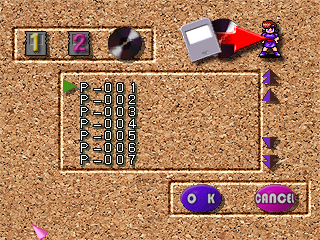
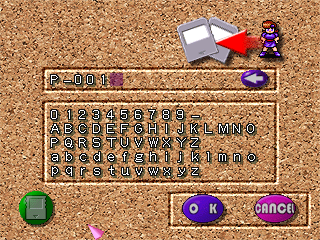
LOAD offers memory card 1, memory card 2 or the CD-ROM. SAVE asks for a name (up to six characters: A–Z, a–z, 0–9 and −), says how many blocks it needs, and asks which card. A name that is already on the card is overwritten after asking (This memory card already holds the file; Saving will write over it.). A monster's name starts with its size (S−, M−, L−, LL), which can't be deleted.
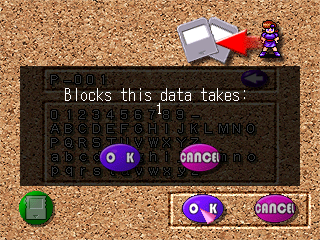
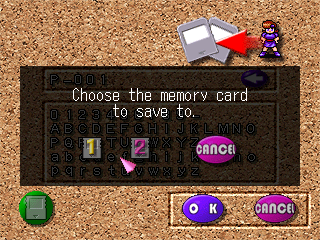
Each save is one file on the card, titled with its kind and its name: Char P-001, Magic MG-001, and so on (the kinds are Char, Magic, Slash, Portrait, Title, Monster, and for the paint editor's own files Parts, Pen tips and Palette). The editor packs a save when that makes it smaller:
| Kind | Blocks |
|---|---|
| Character | 1 or 2 (6 unpacked) |
| Magic, slash, portrait | 1 |
| Title | Up to 8 (the samples take 2–7) |
| Monster | By size and detail: see Monsters |
| A CD-ROM sample, edited | 1 with the patch, whatever its kind, but for an LL monster (below) |
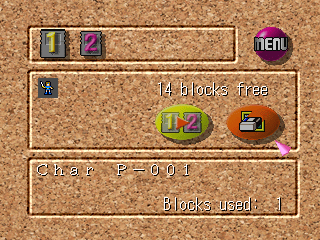
If the card is short of room, the editor says so (Not enough free blocks.) and goes back to the name, with the card untouched. The card button at the bottom left of the save screen opens the Memory Card Utility, to copy or delete files and make room.
The paint editor can also save three kinds of file for its own use, which RT4 doesn't read: a palette (Palette save, in the PALETTE window), a set of pen tips (in the pen tips' management screen) and a part image (Part SAVE in SYSTEM: a rectangle of the picture, to paste into another with Part LOAD).
Using the graphics in RT4#
Back in RT4's editor, Memory Card → External Data takes them in. Choose the kind, then a slot.
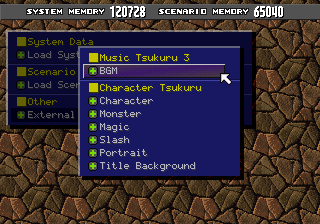
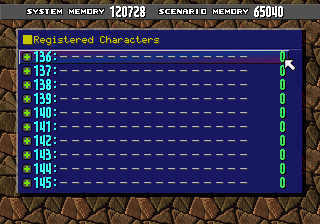
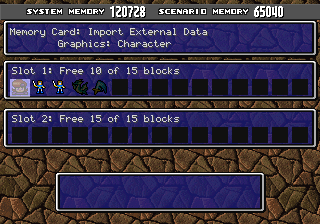
| Kind | Slots | Where it appears |
|---|---|---|
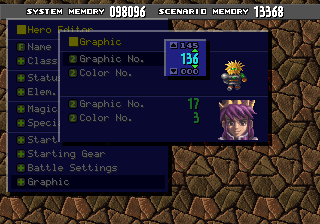
| Character | Hero graphics 136–145 | The Hero Editor's graphic, and an event's Person graphic |
| Monster | Monster graphics 112–126 | The Monster Editor's graphic |
| Magic | Effect graphics 40–49 | A spell's animation frames |
| Slash | Slashes 8–17 | A weapon's slash, listed by name after the seven built-in ones |
| Portrait | Faces from 136 | A hero's face, and faces in messages |
| Title Background | Background 56 | The title screen (the Title editor's background list) |
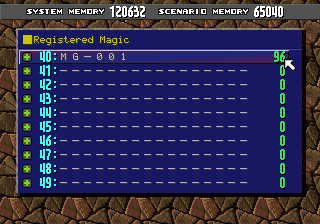
Each slot costs 96 bytes of System room. Registering doesn't copy the picture: it stores the card file's name. The game reads the graphic from the memory card by that name (Loading… with the name), so the card holding the Character Tsukuru saves must stay in the console, while you edit and for anyone who plays the game.
When the card is read depends on the kind:
- Magic and slashes are read at once, when you register them, and again each time the System is loaded. If the file can't be read, because it is damaged or the card has been taken out, the game offers to try again; answering No empties the slot.
- The other kinds are read only when they are first needed: a hero graphic when it is shown, a monster when its battle starts, the title picture when the title appears. If the file isn't found, the game asks for the card that holds it (for a damaged file, it offers to try again); answering No puts a stand-in in its place (for the title, a plain grey picture), and the slot stays registered, so the next use asks again.
So a game that uses Character Tsukuru graphics is shared as its System Data, its Scenario and those save files, on one card.
The art file#
A card holds 15 blocks and 15 files, and every Character Tsukuru save takes a file and at least a block. A face, a magic effect or a slash is a few hundred bytes of picture, but it fills a whole block, so a game with art of its own runs out of card long before it runs out of slots. The patch's art file packs a game's graphics together: one card file, called a part, holds up to 30 graphics in up to 15 blocks, each graphic taking only the room its picture needs.
| Graphics | As separate saves | In the art |
|---|---|---|
| Faces, magic effects and slashes, 27 of them | 27 blocks in 27 files | about 2½ blocks |
| A modest game's art: 4 characters, 4 faces, 3 spells, 2 slashes, 4 monsters | 18 blocks in 17 files, more than a card holds | about 8 blocks |
| Every External Data slot filled, 53 graphics | 63 blocks | about 28 blocks |
The figures are for graphics drawn from scratch, added one at a time in the game; an edited sample takes less again.
Every slot filled. RT4 has 53 External Data slots: 10 characters, 10 faces, 10 magic effects, 7 slashes, 3 S, 7 M, 4 L and 1 LL monster, and a title. Filling every one:
| All 53 slots filled | Blocks | Memory cards, at least |
|---|---|---|
| The original: a save for each graphic | about 72 | 5 |
| The patch: a save for each graphic | about 63 | 5 |
| The patch: a save for each, every one an edited sample | about 55 | 4 |
| The patch's art file: graphics drawn from scratch | 26 to 28 | 2 |
| The patch's art file: every graphic an edited sample | about 19 | 2 |
A card holds 15 blocks and at most 15 files, so the original needed four cards for the 53 files alone and five for the blocks, before the System and the Scenario. In the art the 53 graphics sit in a handful of parts (a part holds up to 30). The lower art figure is the art packed tightly; added one at a time in the game, graphics spread over more parts and leave a few gaps, which Tidy closes in part. The figures are averages over the CD-ROM's samples standing in for your own graphics. Busier pictures take more room in every row, but the art keeps its lead, since most of what the original spent was the unused end of each block.
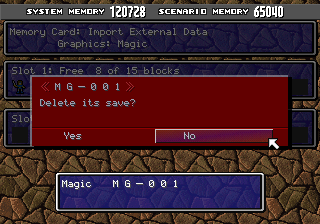
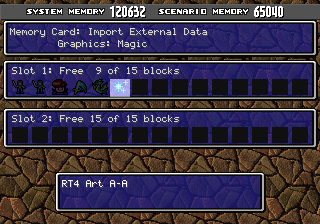
Adding a graphic. On an External Data screen, ○ on one of Character Tsukuru's saves offers Register, as in the original, and Add to art. Add to art asks first, then copies the save into a part with room for it, on this card or the other, or makes a new part when none has room. It packs a small save on the way in, registers the graphic in the slot you came from, and asks Delete its save?: the art now holds the picture, so the save can go. Adding takes several seconds.
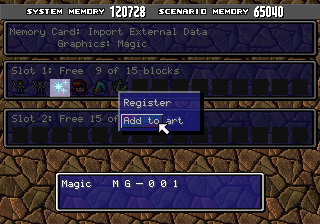
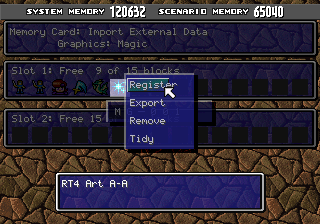
Using the art. A part is listed with the card's files, and is lit on a kind's screen when it holds a graphic of that kind. Its title is RT4 Art with two letters, the game's set and the part: RT4 Art A-A, then A-B and so on. ○ on it lists its graphics of that kind, and ○ on one of those offers:
- Register: put it in the slot, as for a save.
- Export: write it out again as an ordinary save, which Character Tsukuru can load to change it.
- Remove: take it out of the art. Its room goes to the next graphic added, and a part left empty is deleted. A slot that used it then asks for its card, as for a deleted save.
- Tidy: pack the set's parts on this card again, moving graphics into gaps and joining small parts into fewer. It needs a few blocks free, and can take half a minute. It says There is nothing to tidy when the parts are already as small as they get.
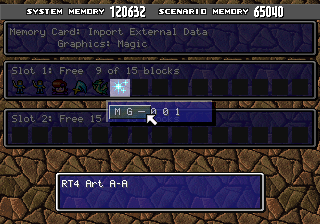
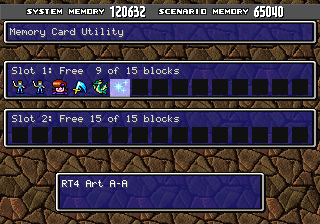
Nothing in the System changes. A slot keeps the name of the save it was registered from, and when that save is gone the game looks for the graphic in the art instead. So a game whose saves go into the art later goes on working, and the art can be tidied or moved to the other card without registering anything again. A graphic is read from the art in the same places and at the same times as from a save.
Safe to cut. A part is written a piece at a time, in an order that leaves it whole after every write: switching off or pulling the card while adding loses at most the graphic being added, and a tidy cut short leaves every graphic in the art, ready to be tidied again.
Fan-made reference material, one of the Eschaton Games Tsukuru guides. Not affiliated with the publishers of the titles it covers.