Covers the guidebook's pages 2–10.
Getting started#
From the title screen#
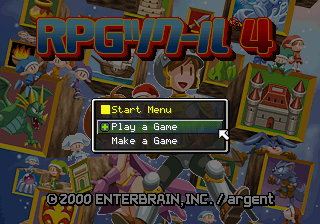
Press any button on the title screen to open the Start Menu. It has two choices: Play a Game plays a game made with RPG Tsukuru 4, and Make a Game opens the editor.
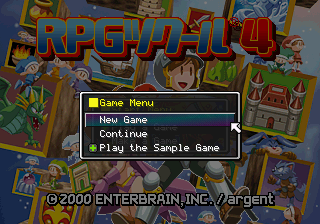
The Game Menu under Play a Game:
| Choice | What it does |
|---|---|
| New Game | Starts a game from a memory card: pick its System Data, and the first Scenario it names is loaded with it. |
| Continue | Loads a saved game from a memory card. |
| Play the Sample Game | Loads and plays the sample game from the disc. |
The controls#
The buttons follow the Japanese convention: ○ confirms and × cancels or goes back. The patch keeps this as the default, and adds a Use × to Confirm setting that swaps the two, in the Editor Settings and in the game's Settings.
| Where | Button | Does |
|---|---|---|
| Everywhere | ○ | Confirm, open, choose |
| Everywhere | × | Cancel, go back, close |
| Editor top menu | SELECT | Editor Settings |
| Editor top menu | △ | Test Play |
| Number fields | △ | Jump to the lowest or highest value (per the guidebook) |
| Text entry | L2 | Switch between capitals and small letters (patched keyboard) |
| Map editor | START | The map editor's menu bar |
| Map editor | R1 | Eyedropper: pick up the part under the cursor |
| Map editor | L1 / L2 | Grid on or off (on to begin with) / show the parts' attributes |
| Map editor | R2 | Switch layer |
The sample game#
The disc comes with a short sample game, Rappin' MAGIC. It takes about an hour, and it's worth playing before you start a game of your own. A princess has fallen into a sleep no one can wake her from. Crest and his friends hear of a royal notice promising her hand to whoever brings back a cure, and set off through a snowy forest. They gather allies on the way, meet a rival suitor and solve a block-pushing puzzle before facing the demon behind it all.
It's small (nine maps, under two hundred events), but it uses most of what the editor offers: shops, an inn, a slot-machine roulette, scripted battles with a branch for losing, scrolling captions and an ending with a staff roll. The guide uses it as its running example, and Playing a game walks through its route.
The editor's top menu#
Make a Game opens the editor at its top menu. Everything you make is reached from here.
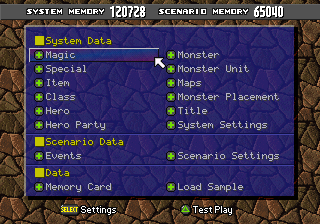
| Group | Row | What it edits |
|---|---|---|
| System Data | Magic, Special | Spells and special moves: their effects, costs, targets and animations |
| Item | Items, weapons, armour and accessories | |
| Class | Classes: stats, capacities, the magic and special moves they learn | |
| Hero | The heroes: their class, levels, starting gear and graphics | |
| Hero Party | The starting party and items, and party-wide rules | |
| Monster, Monster Unit | Monsters, and the groups they fight in | |
| Maps | Drawing maps, or picking ready-made ones | |
| Monster Placement | Which monster units appear where, on each map | |
| Title | The game's title screen | |
| System Settings | The project's name, staff, parameter and command names, windows, sounds | |
| Scenario Data | Events | The events on each map: the story, people, chests, doors |
| Scenario Settings | The Scenario's name and password | |
| Data | Memory Card | Save and load System Data and Scenarios |
| Load Sample | Load the sample game into the editor |
Two buttons work everywhere in the top menu: SELECT opens the Editor Settings (below), and △ opens Test Play.
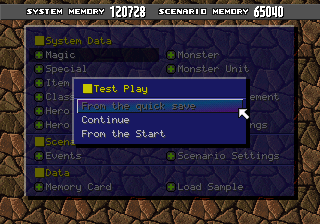
Test play runs the game being edited without saving it first. From the Start begins a new game; Continue loads a test-play save from the memory card; From the quick save returns to the place where you last quick-saved in test play. Test play also has its own cheats in the field menu, for skipping battles and checking events: see Testing your game.
The memory counters#
The strip at the top of the editor shows how much room is left, in bytes:
- SYSTEM MEMORY: room for System Data (magic, items, heroes, monsters, maps and the rest). Empty, it is 120,728.
- SCENARIO MEMORY: room for the Scenario's events. Empty, it is 65,040.
The numbers roll toward their new value when something changes, and turn red at zero. In the map editor the System figure already counts the map you are drawing, so you can watch a map's cost as you draw.
Loading the sample into the editor#
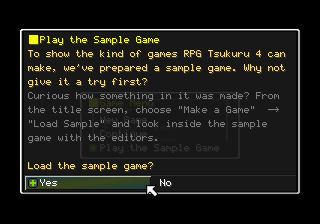
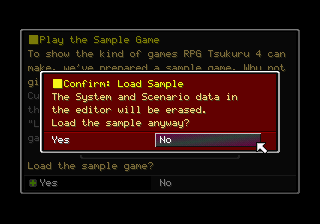
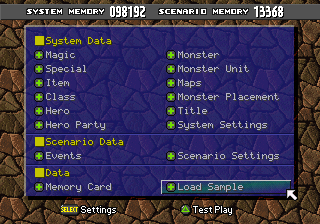
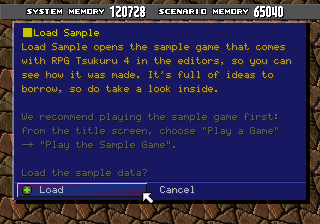
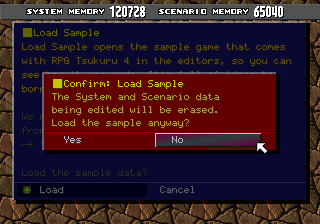
Load Sample, the last row of the top menu, loads the sample game's data into the editor, so you can open every editor and see how it was made. It replaces what is being edited, so save your own work to a memory card first.
Using the editors#
Every System Data editor works the same way: a list of records, and an editor for one record.
The list#
A list has a fixed number of rows, one for each record the game allows (150 for magic, 200 for items, and so on: How much fits). An empty row shows dashes. The number at the left of each row is the record's number, and the column at the right is the bytes it takes.
| Button | On an empty row | On a record |
|---|---|---|
| ○ | Makes a new record and opens it. The magic list asks the kind first | Opens it |
| △ | – | Copies it |
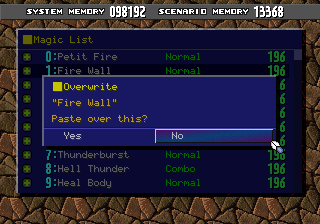
| ○ after a copy | Pastes the copy there | Asks Paste over this?, then replaces the record with the copy |
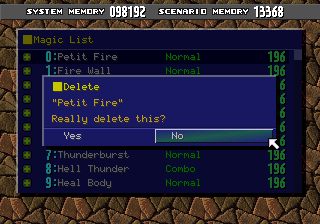
| □ | – | Asks Really delete this?, then deletes it |
The paste and delete questions start on No, so a stray press is harmless. × leaves pasting.
Lists are never sorted or renumbered. A record's number is its row, and everything else in the game refers to it by that number. Deleting a record leaves an empty row, and a new record goes in whichever empty row you choose. To move a record, copy it to the new row and delete the old one; but anything that referred to the old one now refers to nothing (below).
A new record is named after its kind and its row: Magic27, Item12, Class4, Hero2, Monster9, and so on. Rename it at once, since lists of look-alike names are hard to pick from later. A new project is called MY RPG4, its staff Game Design and Name 1, and its first Scenario New Scenario.
Changing a record#
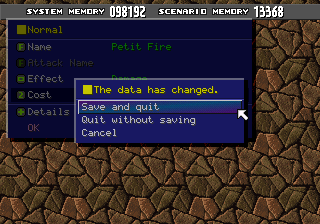
Nothing you change in a record is stored until you leave it. Leaving a new or changed record (×, or OK at the foot of the editor) asks what to do with it:
- Save and quit stores it. Only now do the memory counters move.
- Quit without saving throws the changes away. This is the editors' only undo.
- Cancel goes back to the editor.
A record you opened and didn't change closes without asking.
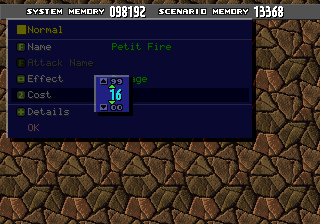
Numbers are entered a digit at a time. ↑ and ↓ change the digit under the cursor, ← and → move between digits, and ○ confirms. The small ▲ and ▼ figures show the highest and lowest value allowed, and turn yellow when the number reaches them; the entry won't go past either. A slider (a bar with a knob) moves with ← and →, faster the longer you hold the button.
When there isn't room, ○ on an empty row (or a paste) is refused with Out of Memory and NNN bytes more needed. The figure is the size of the whole record, not how much more room you need: with 64 bytes left, a new spell asks for 196. That is the editors' only refusal. At a list's end there is no message, just no empty row.
What else changes#
When you save or delete a record, the editor puts right everything that refers to it:
| You | What happens |
|---|---|
| Delete any record | Every reference to it is cleared: a combo's part, a class's magic, a hero's starting equipment, a monster in a unit or in an attack pattern. A deleted item is taken out of the party's starting items, a deleted hero out of the starting party |
| Make a new hero | Every weapon, armour and accessory may be worn by him, and every class may take him |
| Make a new class | It may wear every weapon, armour and accessory from class level 1 |
| Turn a spell into a summon or a combo, or make it field-only | It is taken out of combos and off items that cast it, and field-only spells out of monsters' attack patterns |
| Give a spell Accept | Classes no longer teach it, and weapons no longer cast it |
| Change an item | A hero's starting equipment that no longer suits him (the wrong kind, his hand, or a class that can't wear it at level 1) is taken off |
| Make a monster bigger | Units it no longer fits in lose monsters from the end until it fits |
| Save Hero Party with heroes' special moves costing HP | Every hero's AP is set to 0, and every monster's if theirs cost HP too |
So delete with care: a record deleted by mistake can be made again, but nothing will refer to it any more.
Editor Settings#
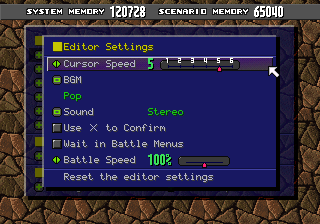
SELECT in the top menu opens the editor's own settings:
- Cursor Speed, 1 to 6: how fast a held direction button repeats in lists and number entries. A new project has 5.
- BGM: the song the editor plays (Pop to start with).
- Sound: Stereo or Mono.
- Reset the editor settings puts all three back.
They are kept in the System Data, so they come back with it when you load it.
What things cost#
The memory counters measure everything in bytes, and the costs aren't obvious. These are the original game's.
The Scenario#
| What | Bytes |
|---|---|
| The first event on a map (it brings the map's Setup Event with it) | 124 |
| Another event with one page | 76 |
| Another page | 48, empty or full |
| A clone | 28 |
| Wait, SE, Call Event, Event Direction and most other commands | 12 |
| Variable | 16 |
| Switch, one switch or a range | 80 |
| 2-Way Branch (Yes/No) with its end | 36 |
| Multi-Branch, even with two choices | 240 |
| Message, 16 Japanese characters on one line | 60 |
| Message, 64 Japanese characters on four lines | 156 |
A message costs about 20 bytes plus its text: 2 bytes a Japanese character and 1 a line break. In the fan games' Scenarios, text is over a third of the bytes and page headers a fifth.
- Fewer pages. Every page costs 48 bytes before it does anything. A branch inside one page is often cheaper than a second page with a condition.
- One Switch command for a run of switches. It costs the same 80 bytes for one switch or for switches 10 to 20.
- A Multi-Branch only for three choices or more. A 2-Way Branch costs 36.
- Clones for crowds. A clone costs 28 bytes, a copy as much as its source.
The System#
| Record | Bytes |
|---|---|
| A spell or special move | 196 |
| An item | 116 |
| A class | 148 |
| A hero | 484 |
| A monster | 320 |
| A monster unit | 36 |
| A map | from a few hundred to 64,000 |
A drawn map stores only the rectangle round each layer's painted cells, so a small room is cheap; a fully drawn two-layer map takes about half the System's room. Default maps cost little. 200 items and 250 monsters together fill the System on their own.
The Scenario fills first. Fan projects of the time used 13 to 37% of their System's room, but filled their largest Scenarios to 92–98.5%, and split their games into two to five Scenarios to go on (A game in several Scenarios). Plan the split early: it is easier to end a Scenario at a natural break in the story than to cut one when it's full.
An order to work in#
The editors can be used in any order, but some things refer to others: a hero needs a class, a class lists the magic it learns, a monster unit needs its monsters, and events need maps to stand on. Making things in this order means each editor finds what it needs already there:
- Plan. The story, the world map, and the size of the game. A short game finished is worth more than a long one abandoned.
- System settings. The Scenario's name (Scenario Settings), the project's name, the parameter names (what HP, MP and the currency are called) and the window colours. See System settings.
- Magic and special moves, then items, then classes, then heroes and the starting party.
- Monsters and monster units.
- Maps, then monster placement (which units appear on which map).
- Events: the story itself, placed on the maps.
- Test play, and balance: fight the battles, walk the routes, and adjust.
- The title screen (The title screen), then save the System Data and the Scenario to a memory card.
The Worksheets chapter has sheets to print for each of these steps.
Fan-made reference material, one of the Eschaton Games Tsukuru guides. Not affiliated with the publishers of the titles it covers.